


Family Axis SoftwareGetting Started with FamilyAxis: Your Onboarding Journey
· 9 min read
Thinking about making the switch to FamilyAxis but not sure what the setup process involves? This article walks through the onboarding journey step by step, so you can see exactly how it works and the support you'll have at every stage.
Getting Started with FamilyAxis: Your Onboarding Journey
Working in family assessment, you're in one of the most time-poor sectors out there. I know, I've been there. There's never enough time in the day, and the idea of taking on something new can feel like just another thing on an already never ending list.
But here's what I can tell you: FamilyAxis will save you time in the long run, and you won't be figuring it out alone. Support documentation, guidance videos, a practice space to experiment in, live team training, we've built all of it in because we know new software only actually gets used if the entire team feels confident with it, not just the person who signed off on it.
So let's walk through what the journey actually looks like.

1. Presentation and Exploration
It starts with a quick 15-minute introductory call, this is a causal way for us to get to understand your needs, and for you to get to know us. If we all feel like it's a good match, we'll book in a presentation.
The presentation takes about an hour, which can be extended if we need more time. We'll walk you through how FamilyAxis works, introduce the key features, and talk through some of the issues you might already be facing and how we've designed the software to solve them.
We'll share a demo video with you too, so you can watch it back and share it with your management team. We've had good feedback from centres that this works well because teams are time-poor, and it means everyone can watch it as and when they have the time, rather than trying to coordinate everyone's diaries for the same meeting.
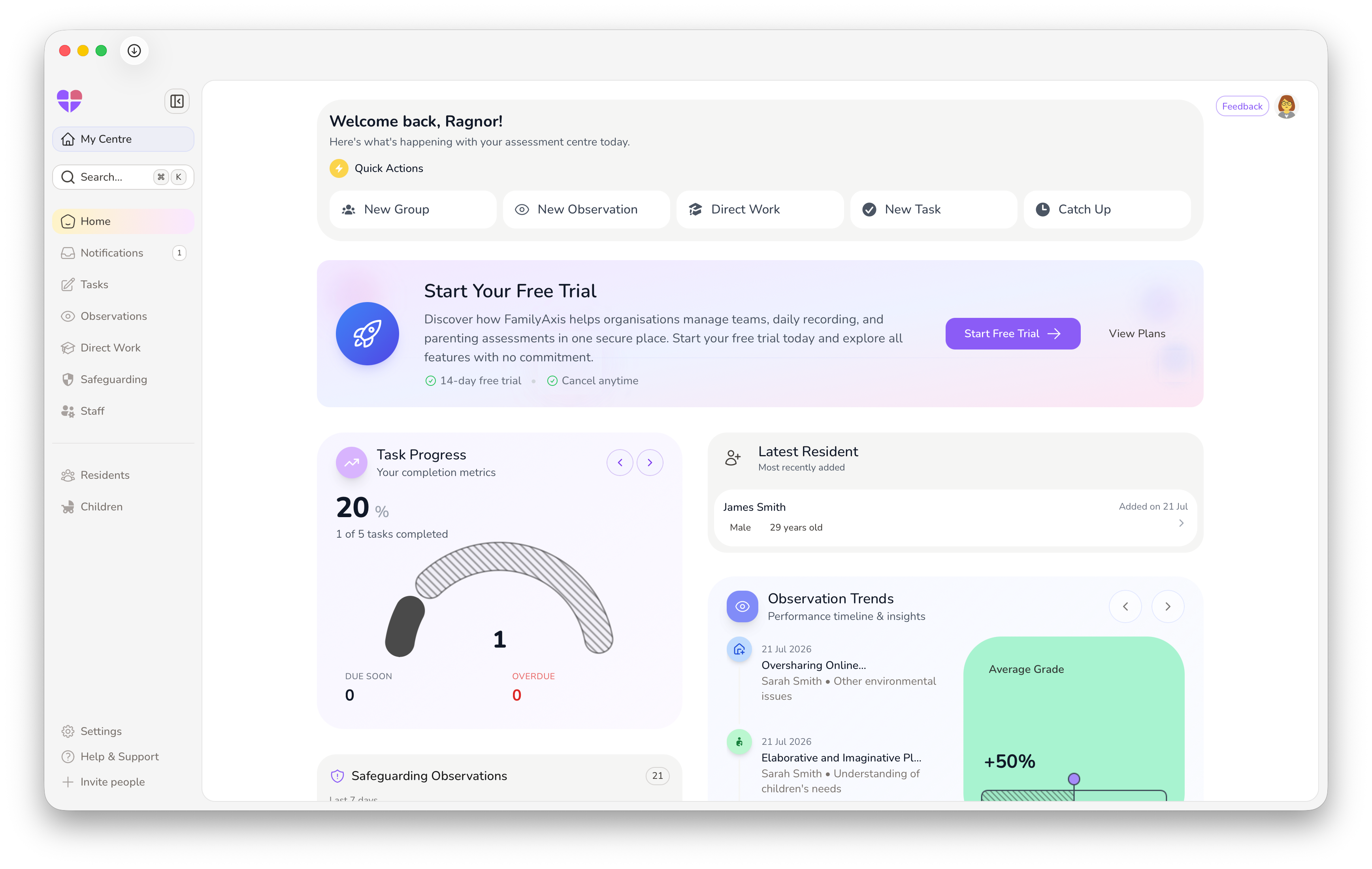
After this, when you're ready, you can set up your organisation account and start exploring for free. We've added a practice space called My Centre, complete with example family profiles, sample observations, and direct work logs. It's a safe, separate space where you can click around, try things, and make mistakes without affecting any real data.
2. Core Team Training
Early on, we run a live, interactive training session on Microsoft Teams to introduce the software to your team. It's a 1-hour presentation, with plenty of time to run over so people can ask questions throughout or after. Think of it as a relaxed introduction, your team doesn't need to understand everything straight away, it's a great opportunity to introduce them to the new software gently as we understand change can feel daunting.

3. Management Workspace Setup
This is where you, as the account owner, lay the foundations. You'll:
- Create your permanent family groups
- Set up your internal templates
- Configure your recurring tasks
If you're switching over from a different system, we've got a feature that lets you upload your existing templates and documents, and it'll help you recreate them in FamilyAxis so you're not starting from scratch. It's a real time-saver if you've already got things set up elsewhere.
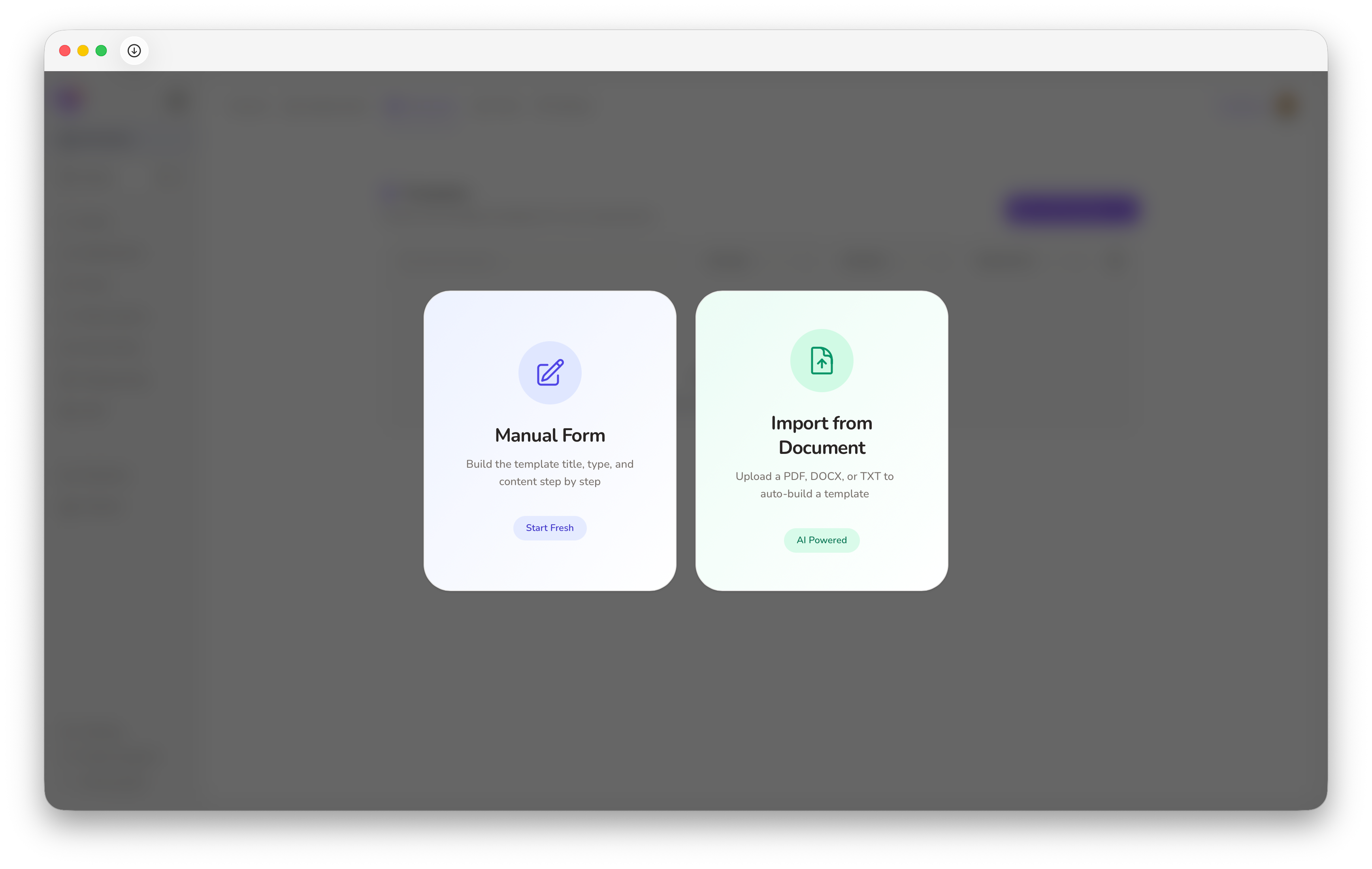
You can take this at your own pace, and it doesn't have to be finished before you bring your team in. If you pick the wrong framework, don't worry, you can just delete the group and create a new one with a different framework.
4. Staff Invitation and Practice
You don't have to be the only one figuring this out. Once your workspace is taking shape, invite your wider team in. The sooner they're exploring alongside you, the sooner this stops being "your" project and starts being something the whole team owns.
They'll set up their own individual accounts, and here's the important bit: nobody gets thrown in at the deep end. When they log in, they land in that same My Centre practice group, a safe space to explore, read the Help & Support documentation, watch guidance videos, and get their heads around the system without the pressure of adding real family logs.

5. Ongoing Support
We hear this a lot: managers worry that once they sign up, they'll be left to work everything out on their own. It's a fair worry, plenty of software gets sold with big promises and then support drops off shortly after. So we've put real thought and effort into making sure that doesn't happen with FamilyAxis.
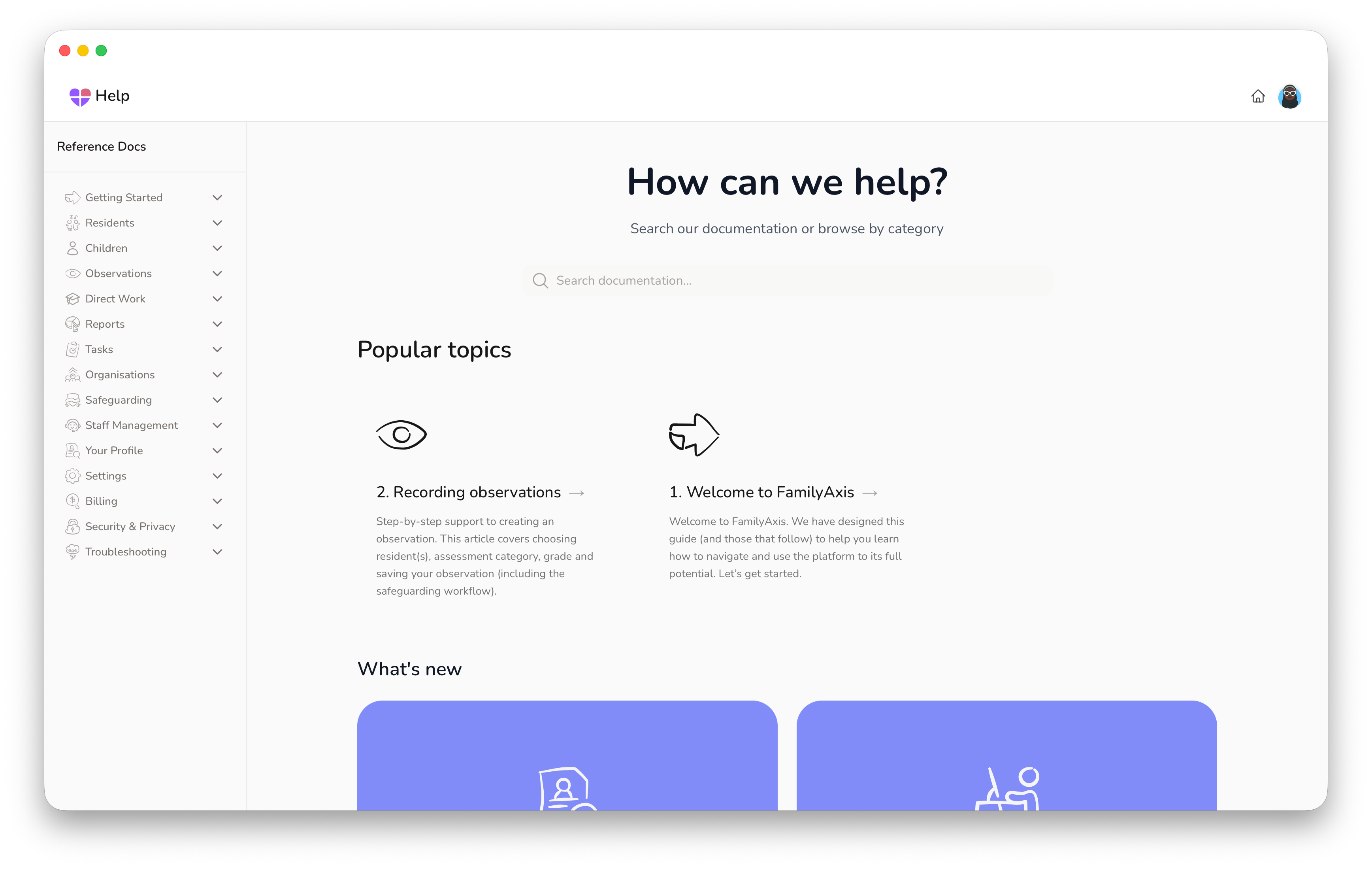
The Help & Support Centre isn't just for the setup phase, it's there whenever you need it. It's for everyone, managers and team members alike, with articles written for every role and video walk-throughs covering features across the platform. So whenever someone gets stuck or wants to learn something new, the answer is right there, not buried in an inbox somewhere waiting on a reply.
Once you subscribe to a plan, you'll also get access to chat support for anything that needs a faster answer.
And support isn't just about fixing problems. We openly encourage teams to use the feedback tool built into the software, and we genuinely want your ideas. We're passionate about helping you do your job better and improving outcomes for the families in your care, and that means we're never really finished, we keep evolving alongside your needs.
6. Team Compliance Uploads
Because FamilyAxis was built to handle all aspects of running a residential family centre, we know that managing staff compliance is just as important as managing family data. That's why the system includes tools to track fit to work documentation, right to work checks, and any other employment documentation you need on file.
As a manager, you'll start by creating templates for your compliance requirements, things like DBS checks, references, and forms of ID. Once those templates are in place, your team can start uploading against them.
Training certificates work a little differently: your team can upload these themselves at any time, without you needing to set anything up first. So while you're working through templates for the rest of your compliance requirements, your team can already be getting ahead on this part.
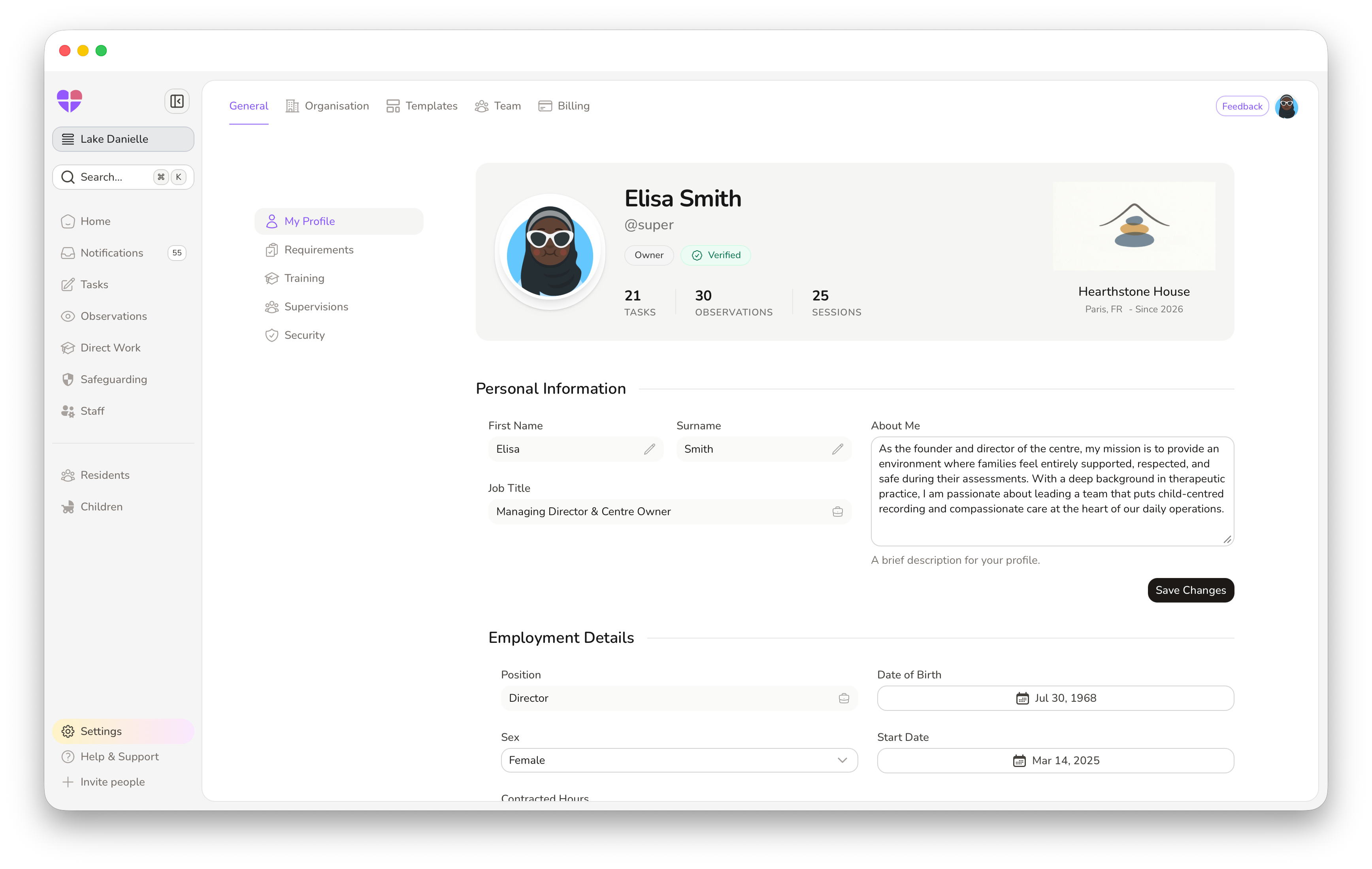
To help your team get started, ask them to watch the walk-through videos in the My Profile area of the Help & Support Centre. These cover requirements, training, and supervision, so everyone understands what they need to do and where to find it.
Each person will complete their own profile: role, contact details, emergency contacts, and any health and wellbeing information you need on file. Then they can start adding their compliance documentation. We know this can take time, but having everything in one place means you're not chasing documents across emails and folders, and it helps speed things up when you're bringing new team members on board.
7. System Fully Ready — Go-Live!
Your team is now trained, your workspace is configured, and your compliance is in order. The system is live and ready. Employee profiles are set up, the task system is active, and you can start creating resident and child profiles as families move in.
You can host up to 3 resident profiles completely free for as long as you like. Once you need more than that, let us know and we'll help transfer account ownership to your billing administrator, subscribe to a plan, and start your 14-day free trial.

You're Not on Your Own
Throughout this whole process, you've got support. Here's a quick recap of what's available:
- Help & Support Centre: full documentation and video walk-throughs covering every part of the system, written and shown in plain English. Available once you've created your account.
- The My Centre Practice Group: a practice space with example data where you and your team can experiment without risk.
- Live Training: a dedicated Teams session with Q&A for your core team.
- Follow-up Teams Meetings: optional, whenever your team wants to talk things through further.

Built by People Who've Been There
Here's something that sets FamilyAxis apart: we're not a generic tech company building software for a sector we've only read about, or repurposing something built for an entirely different job. Our team has real experience working in family assessment centres. We understand the pressures, the paperwork, the daily juggle, because we've lived it too.
That's why FamilyAxis exists in the first place. It was built by people who knew exactly where you're coming from, and what you actually need from software like this.
We also know that people in the social care sector aren't always the most tech-savvy, and honestly, that's completely fine. You shouldn't need a degree in computer science to log your observations or generate a report. So we've put real care into making the design as intuitive and enjoyable to use as possible: no clunky menus, no confusing jargon, no feeling like you need a manual just to find your way around. Your work is already complicated enough. The software shouldn't be.
We're constantly shaping the software around feedback from the people who actually use it. FamilyAxis isn't a finished product, it's a system evolving alongside the centres that rely on it every day. We love hearing your feedback, good or bad, and we welcome ideas from those working directly with families, because you know what your centre needs better than anyone.
The Bigger Picture
We won't pretend onboarding is a five-minute job, because it isn't. But we've designed it to be as gentle as possible: clear steps, support at every stage, all paced to fit around the work you're already doing. By the time you go live, your team will know the system, your compliance will be in order, and you'll finally have the space to focus on what matters most: keeping children safe and giving families the best possible chance.

If this sounds like it could be a good fit for your centre, we'd love to talk it through with you. Send us an email at [email protected] and we'll set up an introductory call.