



Family Axis SoftwareIntroducing Our Supervision Tool

· 6 min read
Looking for a better way to manage staff supervisions in your residential family centre? In this article, we introduce our supervision tool, which lets you book sessions, add pre-session prompts, record notes, and send write-ups to your staff for acknowledgement.
If you've ever managed supervisions in a residential family centre, you'll know the challenges. Sessions happen, notes get written, but where do they go? Too often, supervision notes are stored in a Word document on someone's desktop or in a folder that is difficult to find. Weeks later, it's unclear whether the record was accurate, whether the staff member agreed with it, or whether anyone can find it when Ofsted ask to see it.
In our earlier article, Staff Supervision and Wellbeing in Residential Family Centres, we explored why supervision matters so much in these settings. It's a statutory requirement under Standard 17 of the National Minimum Standards and Regulation 17 of the Residential Family Centres Regulations 2002. But it's also something much more human than that. It's how centres look after the people who look after families.
In this article, we'll walk through the supervision tools we've built at FamilyAxis to help your centre stay compliant with these requirements, while giving your team the support they need.

Key Takeaways
- Book supervisions, add pre-session prompts, and write up notes all in one place
- A built-in acknowledgement process means both manager and staff member sign off on the final record
- Rejections come with feedback, so records can be revised until both parties agree, with no limit on revisions
- Action counts and status filters give managers instant oversight of what needs attention
- Every supervision is stored against the staff member's profile, ready for the next inspection
Booking Sessions and Pre-Session Prompts
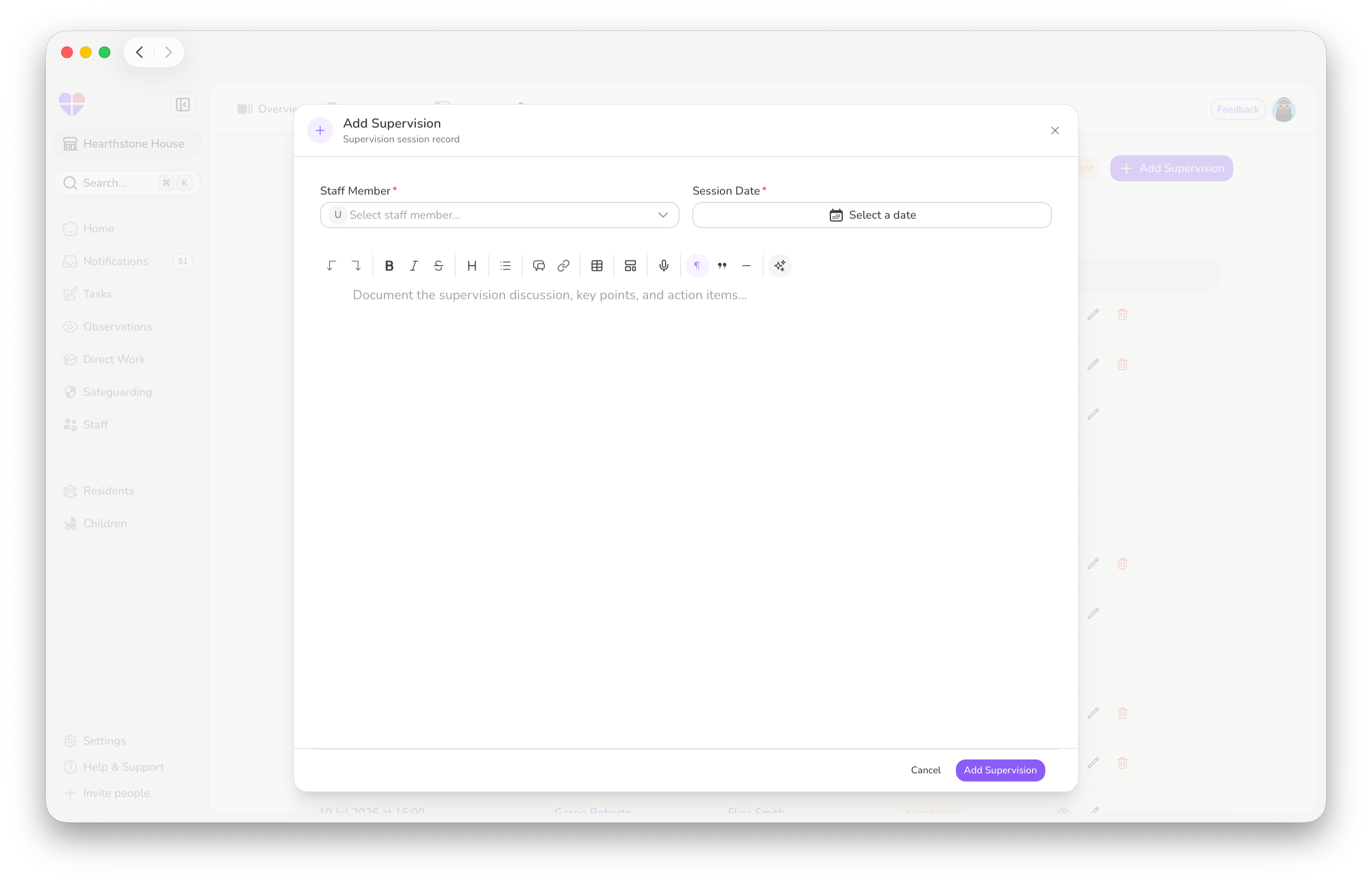
- From Staff > Supervision, click + Add Supervision
- Select the staff member from the dropdown menu
- Add the date the supervision will take place
- Use the text editor to add anything you want on record before the session, including questions for your team member to reflect on in advance
- If your organisation has a standardised template, click the template icon to inject it into the notes, keeping records consistent across the team regardless of who's running the session
Once booked, the supervision appears in the staff list as Scheduled, and on the staff member's own supervision page under Settings > Supervisions, so they know what's coming and can prepare.
Tip: Adding pre-session questions or prompts gives your team member time to reflect before the meeting. This often leads to more productive and meaningful sessions.
Recording Notes and Closing the Loop
Write up your notes either during the session, capturing things while they're fresh, or shortly after from memory. Document the discussion, key points, and any agreed actions, then click Save Changes.
Tip: You can make rough notes during the session and refine them afterwards. To save time you can use the AI assistant to tidy up your notes before sending them for acknowledgement.
Sending for Acknowledgement
When you're happy with the record, click Sign & Send for Acknowledgement. The status changes to Action Needed on both sides.
From here, the staff member reviews the notes and chooses one of two paths:
- If they're happy, they click Acknowledge. The supervision is marked Complete and finalised in both histories.
- If something needs changing, they click Reject and add feedback on what needs correcting. The status changes to Rejected until you edit and resend, at which point it returns to Action Needed.
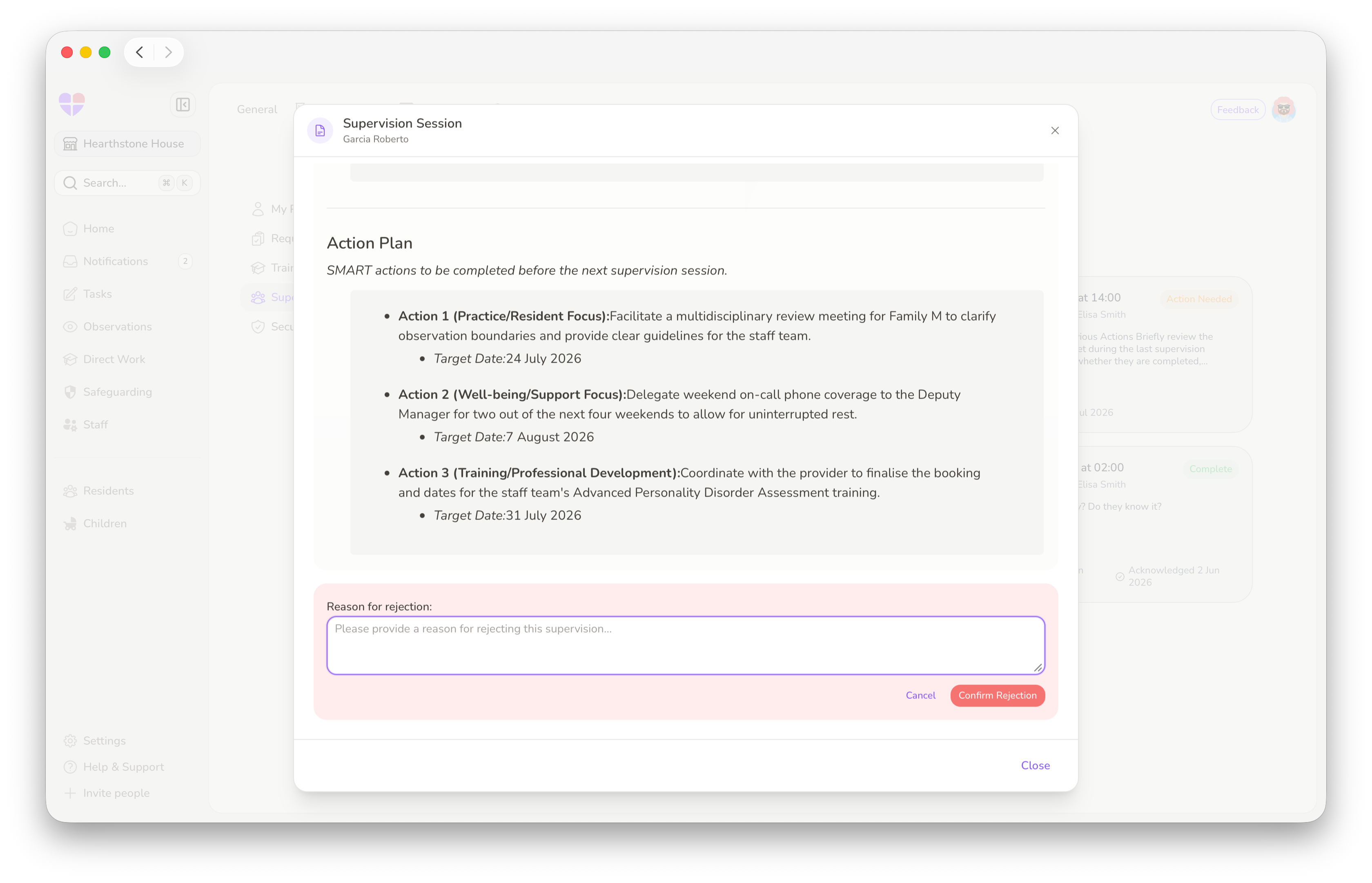
This matters because the record isn't imposed from above. It's something both parties have agreed on, so when the next inspection comes, you have a complete, accurate history everyone has signed off on.
Rejections aren't a negative thing. They show your team member is engaging with the process and taking ownership of their own record. Work through their feedback together until you reach a version you're both comfortable with.
Oversight and the Staff Member's View
Manager Oversight
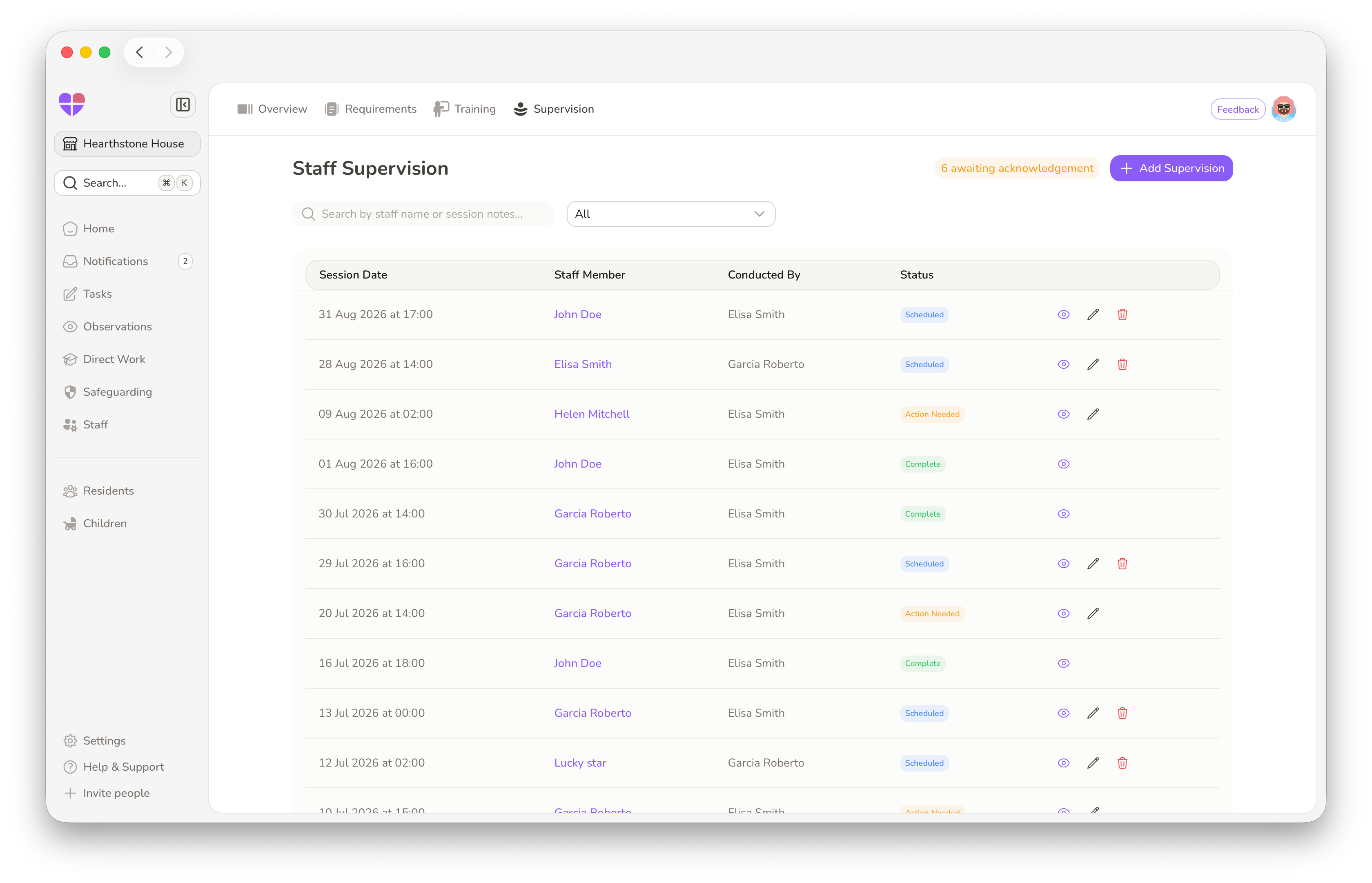
On the Staff Supervision page, a counter at the top shows how many supervisions are currently awaiting acknowledgement, so you can see at a glance what needs your attention. Use the dropdown to filter the list by status: Scheduled, Action Needed, Rejected, or Complete.
Next to each status, you'll see the following icons:
- Eye icon: open a record to review
- Pencil icon: edit a record
- Bin icon: remove anything created in error
The Staff Member's View
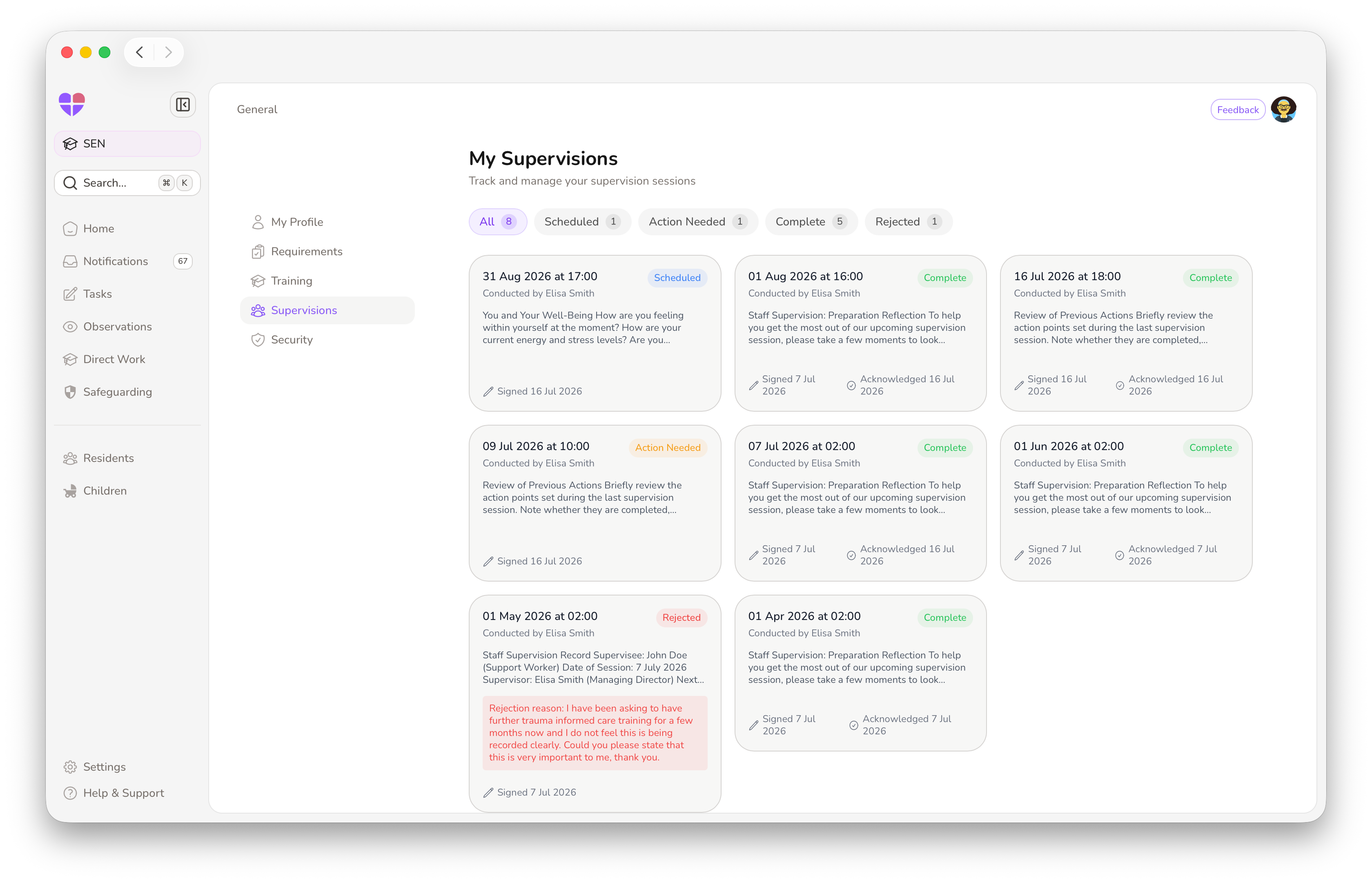
Under Settings > Supervisions staff members see the same statuses from their own side, including: upcoming sessions, notes awaiting review, rejected records displaying their feedback, and their completed supervision history.
If they ever need to look back at a previous session, it's right there, with no digging through folders or needing to log into a separate platform.
Why Teams Will Appreciate It
- A record both parties agree on: The acknowledgement process means supervision notes aren't just written and filed. They're reviewed and confirmed by both manager and staff member.
- Nothing disappears: Every supervision is stored with a status, a date, and a history.
- Easy to find: Supervisions sit directly in the staff member's profile and the manager's staff are. When Ofsted ask to see your supervision records, they're all in one place.
- Consistency across the team: Templates keep your notes structured and consistent, no matter who's running the supervision.
- Clear oversight: Status counters show you at a glance what needs your attention, so nothing sits forgotten.

Looking After the People Who Look After Families
Supervision is a statutory requirement, yes. But it's also a professional right. It's the space where staff can be honest about what they're struggling with, reflect on their practice, and get support for some of the most demanding work in social care.
Our tool makes sure the conversation doesn't get lost, by giving both parties a say in the record, keeping everything in one place, and making it easy to find when it matters. So the time your team spends in supervision is time well spent, and the record of that time is one everyone can trust.
In our earlier article, we wrote that looking after the people who look after families is not a distraction from the work. It is the work. The FamilyAxis supervision tool is built around that belief.
Sources:
- Department for Education. (2013). Residential Family Centres National Minimum Standards, Standard 17: Staff support and supervision. Retrieved September 9, 2026, from assets.publishing.service.gov.uk/media/5a7574c7ed915d731495a184/2013_Residential_Family_Centres_NMS.pdf
- The Residential Family Centres Regulations 2002, Regulation 17 (Employment of staff). Retrieved September 9, 2026, from The Residential Family Centres Regulations 2002
- FamilyAxis. (2026, August 17). Staff supervision and wellbeing in residential family centres. Retrieved September 9, 2026, from Staff Supervision and Wellbeing in Residential Family Centres | FamilyAxis